
Developer Quick Guide
This guide walks the whole Developers Hub flow from start to finish: upload your team binary, test and verify it, give it a crest, then create or join developer challenges and tournaments. Every step here has a screenshot.
It stays focused on what is specific to developers. For the rest of the platform it links out instead of repeating it:
- The binary itself (archive layout, the
startfile, what to do when a test fails, RoboCup resources) lives in Building Your Team. - The general rules of challenges and tournaments (prize split, deadlines, formats, brackets) live in 1v1 Challenges plus Tournaments.
1. Open Developers Hub
Section titled “1. Open Developers Hub”Open Developers Hub from the left menu. The header explains the idea: you compete with your own team binary instead of NFT players. Expand How to prepare your binary for the inline checklist.
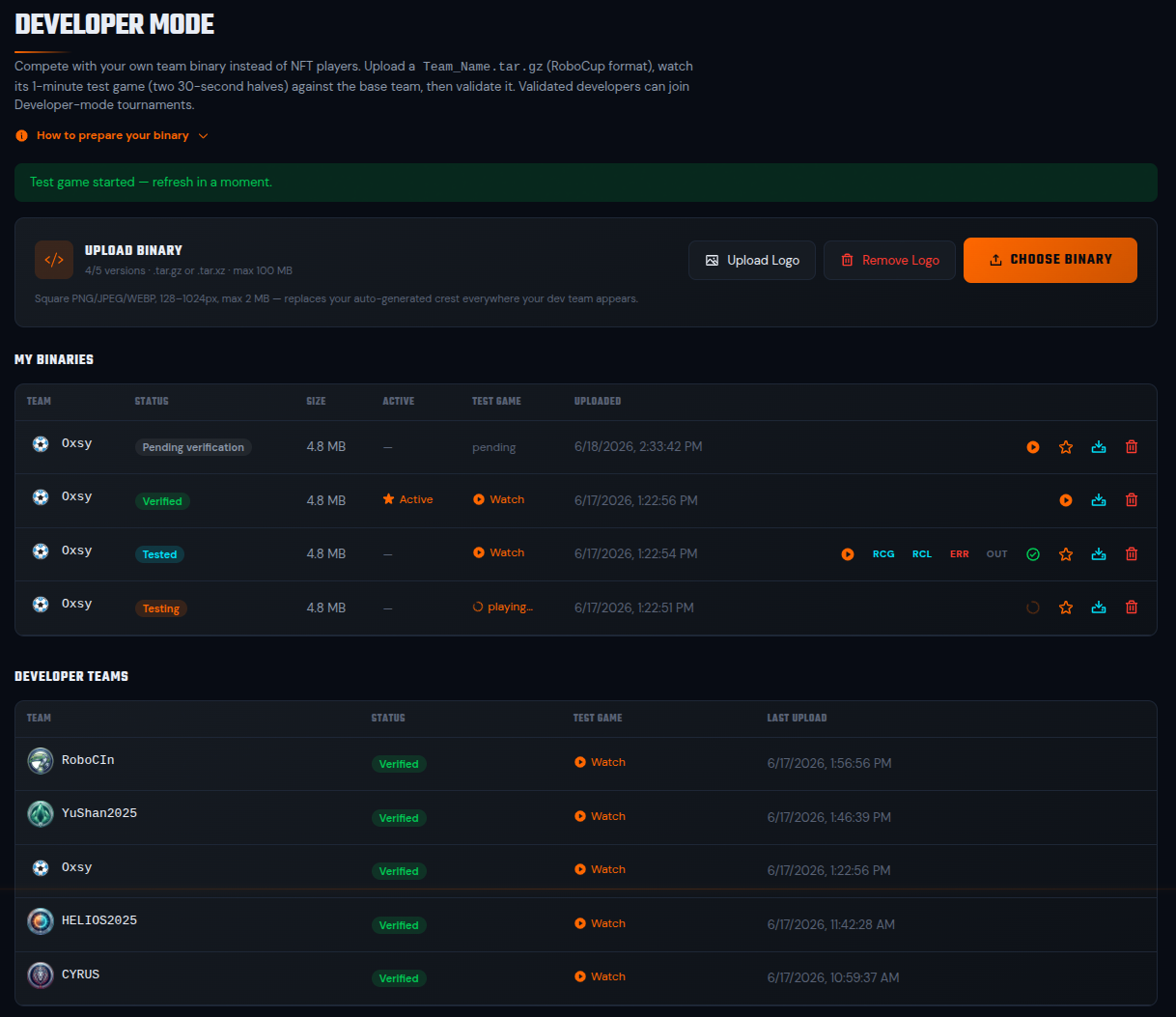
This single page is where you do everything in the next steps: upload, test, verify, activate, set a crest, see the other developer teams.
2. Upload your binary
Section titled “2. Upload your binary”Press Choose Binary and pick your Team_Name.tar.gz. You can keep up to 5 versions at once. Delete one to free a slot. A fresh upload starts at Pending verification.
3. Test, verify, activate
Section titled “3. Test, verify, activate”Everything you do to a version happens in the My Binaries table (shown on the page above): its status, the test game, the logs, the actions on the right.
A version moves through these states:
- Pending verification: just uploaded, not tested yet.
- Testing: the platform is running a short 1-minute test game (two 30-second halves) against the base team.
- Tested: the test game produced its logfiles. Watch the replay. Download RCG (the full replay), RCL (the command log), ERR (stderr, where crashes print), OUT (stdout, the game flow).
- Verified: you reviewed the test and pressed the green Verify check. Only a verified version makes you eligible for developer challenges plus developer tournaments.
Press the star to set a verified version as Active. The active version is the one that represents you everywhere. You have one active version at a time.
4. Give your team a crest
Section titled “4. Give your team a crest”Press Upload Logo to set a square crest (PNG, JPEG or WEBP, 128 to 1024px, up to 2 MB). It replaces the auto-generated crest everywhere your dev team appears: My Binaries, the lists, challenges, tournaments, replays. Remove Logo reverts to the auto-generated crest. The crest belongs to your team, so it shows on every version row, not just the active one.
5. See the other developer teams
Section titled “5. See the other developer teams”Below your own versions, the Developer Teams list shows every verified developer team with its status, its test game, its last upload. These are the teams you can challenge directly or face in a developer tournament.
6. Create a developer challenge (1v1)
Section titled “6. Create a developer challenge (1v1)”Open Create 1v1 and turn on Developers challenge. This does two things: it unlocks the free Bronze tier (no FOXSY), it restricts the opponent search to verified developer teams. Pick an opponent or leave it open for any developer to join. Both players run their uploaded binary.
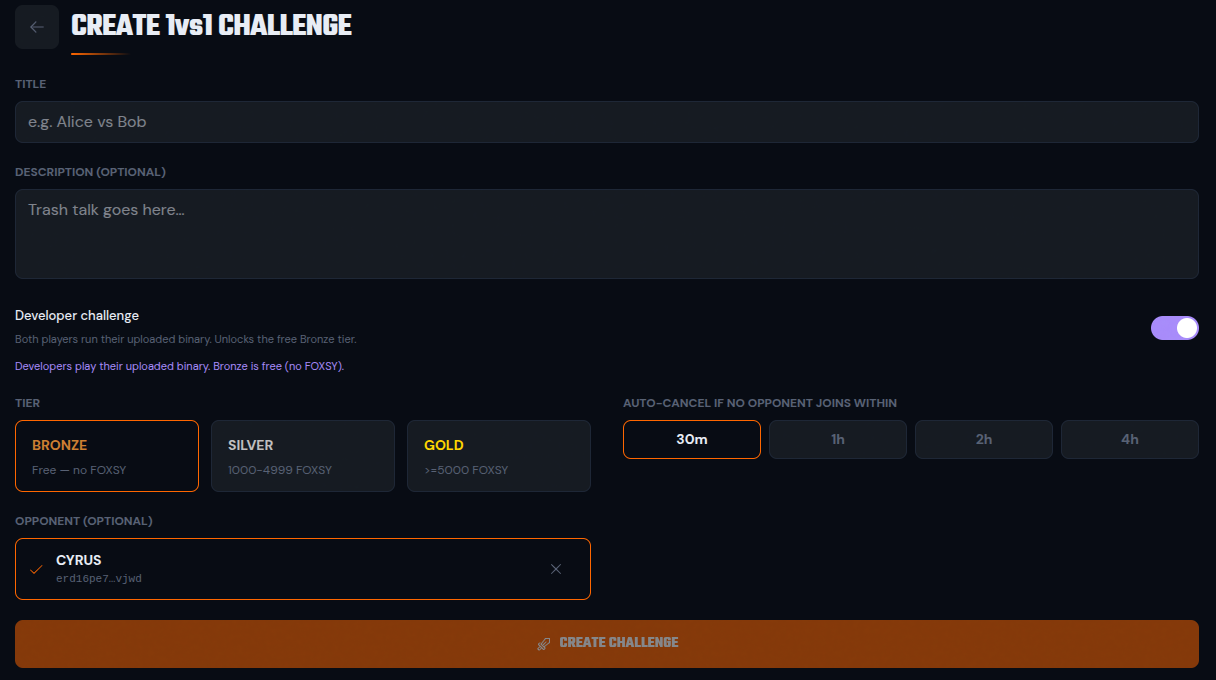
Bronze is a free practice tier: no FOXSY, no ELO, no XP. For the paid tiers (Silver, Gold), the prize split, the auto-cancel deadlines, the join rules are the same as any challenge. See 1v1 Challenges.
7. Create a developer tournament
Section titled “7. Create a developer tournament”Open Create Tournament. On the Config step, turn on Developers Hub. Only teams that uploaded and verified a binary can join or be invited. The tournament gets a violet DEVELOPER badge. It works on every format. Groups + KO needs at least 8 teams (two groups), so the knockout has real semifinals.
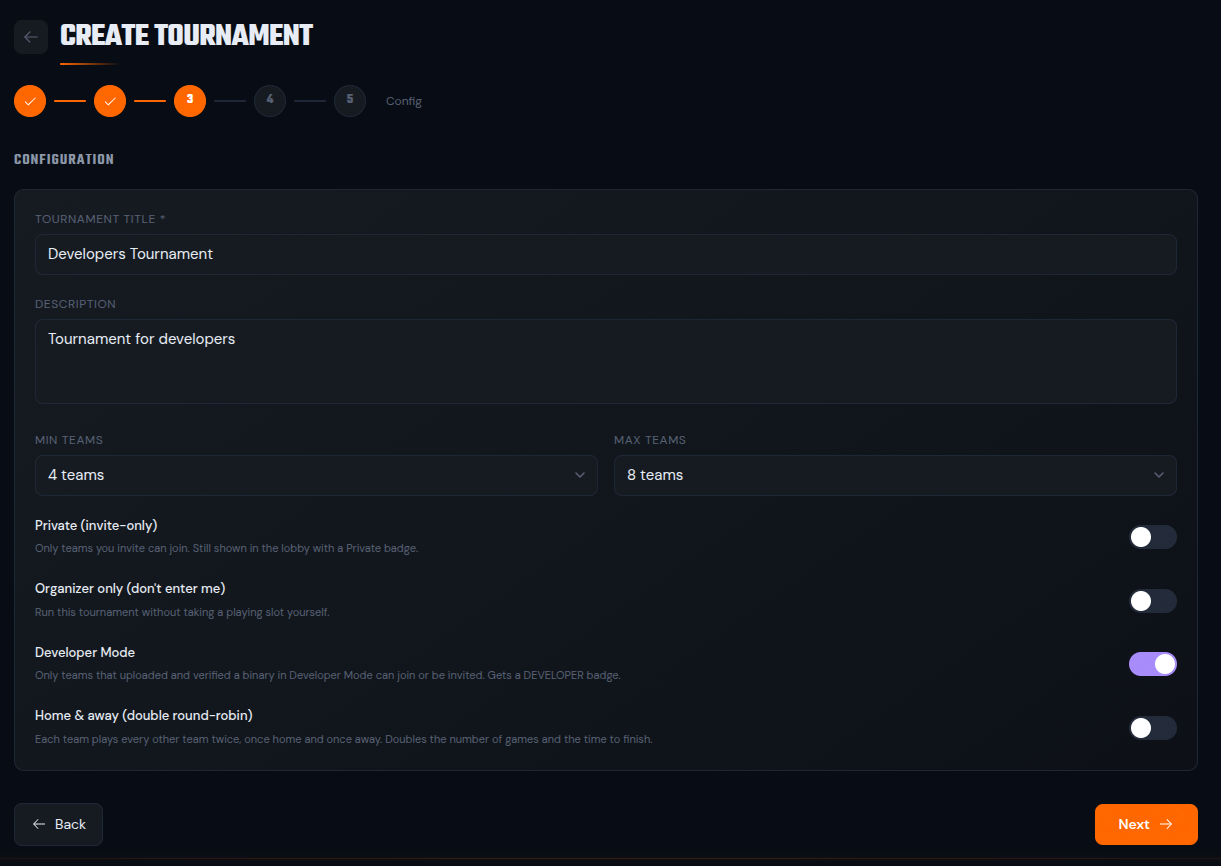
The formats, the brackets, the seeding, the prize pool work exactly as for any tournament. See Tournaments.
8. Your binary is your strategy
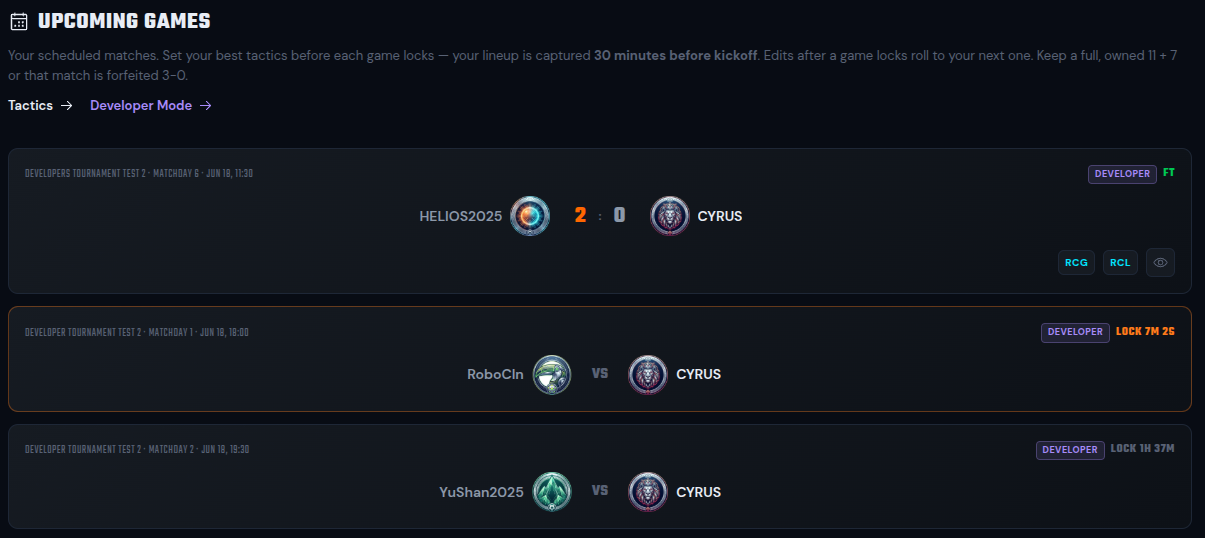
Section titled “8. Your binary is your strategy”A developer game has no starting XI to set. Your active binary is your strategy. Make sure the version you want is active before the game locks (30 minutes before kickoff). The reminder for your next developer game lives on the Developers Hub page, not the Tactics page (Tactics is for NFT teams).
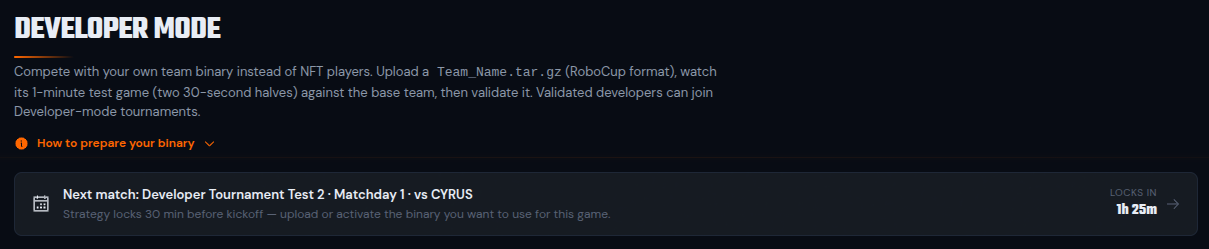
The Upcoming Games page lists your scheduled developer matches. A developer (active, verified) sees a Developers Hub link there next to the Tactics link.
9. Follow and review your games
Section titled “9. Follow and review your games”Everywhere a developer game shows, it carries the dev team names, the dev crests, the violet DEVELOPER badge. Once played, it also has RCG plus RCL downloads next to the replay.
The tournament page has a Lobby (the participants, the countdown), a Matches tab (each game with its replay plus RCG and RCL), a Standings tab, a Bracket.
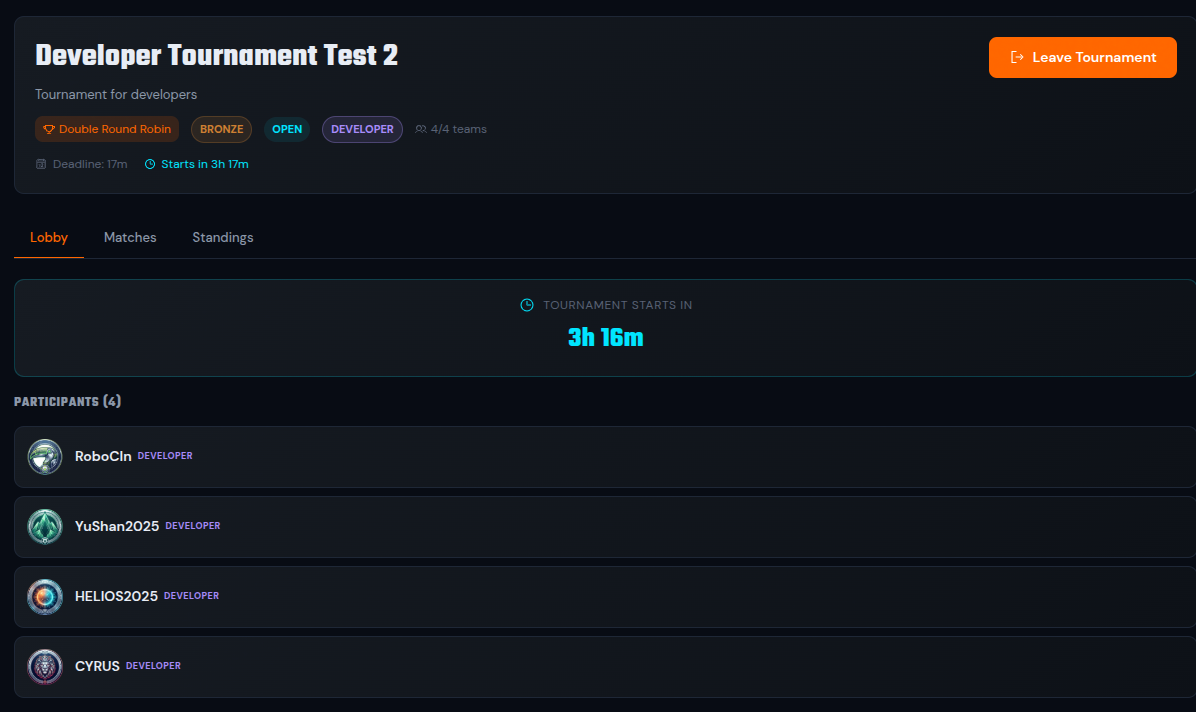
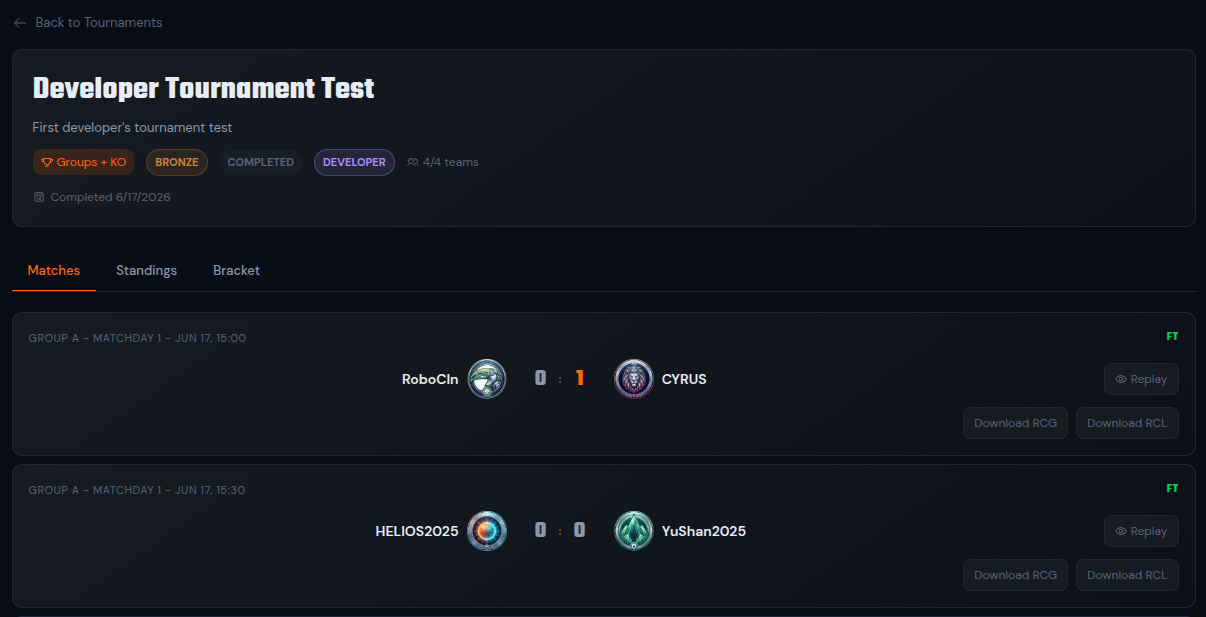
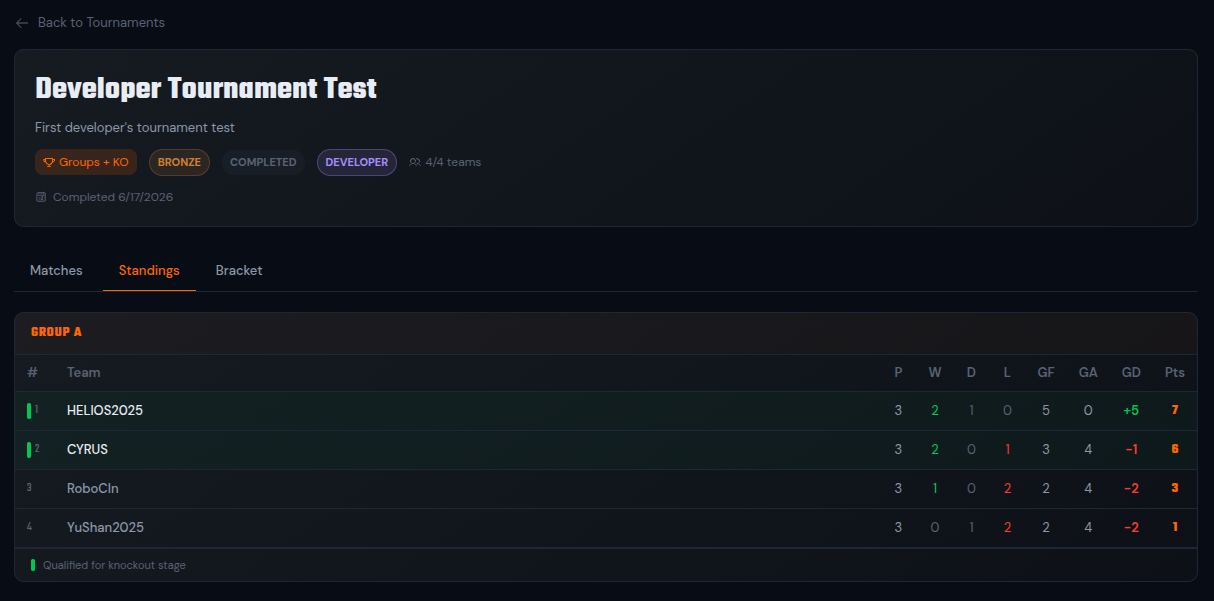
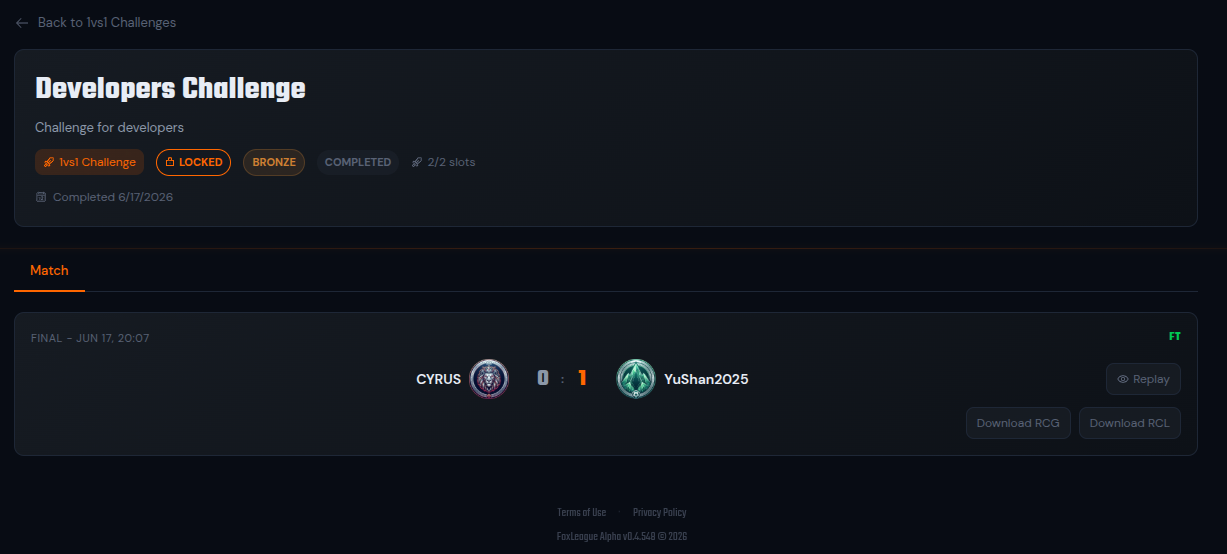
A developer challenge shows the single match the same way, with its replay plus RCG and RCL.
Your past developer games appear in Match History with the DEVELOPERS badge, the dev crest, the RCG and RCL downloads. Binary-validation test games are kept out of history (they live in My Binaries).
Where to go next
Section titled “Where to go next”- Building Your Team: the binary in depth. Archive layout, the
startfile, troubleshooting, RoboCup resources. - Royalties System: how a verified team can earn rewards.
- 1v1 Challenges and Tournaments: the general rules behind the developer versions above.